 PDigger
Step 1
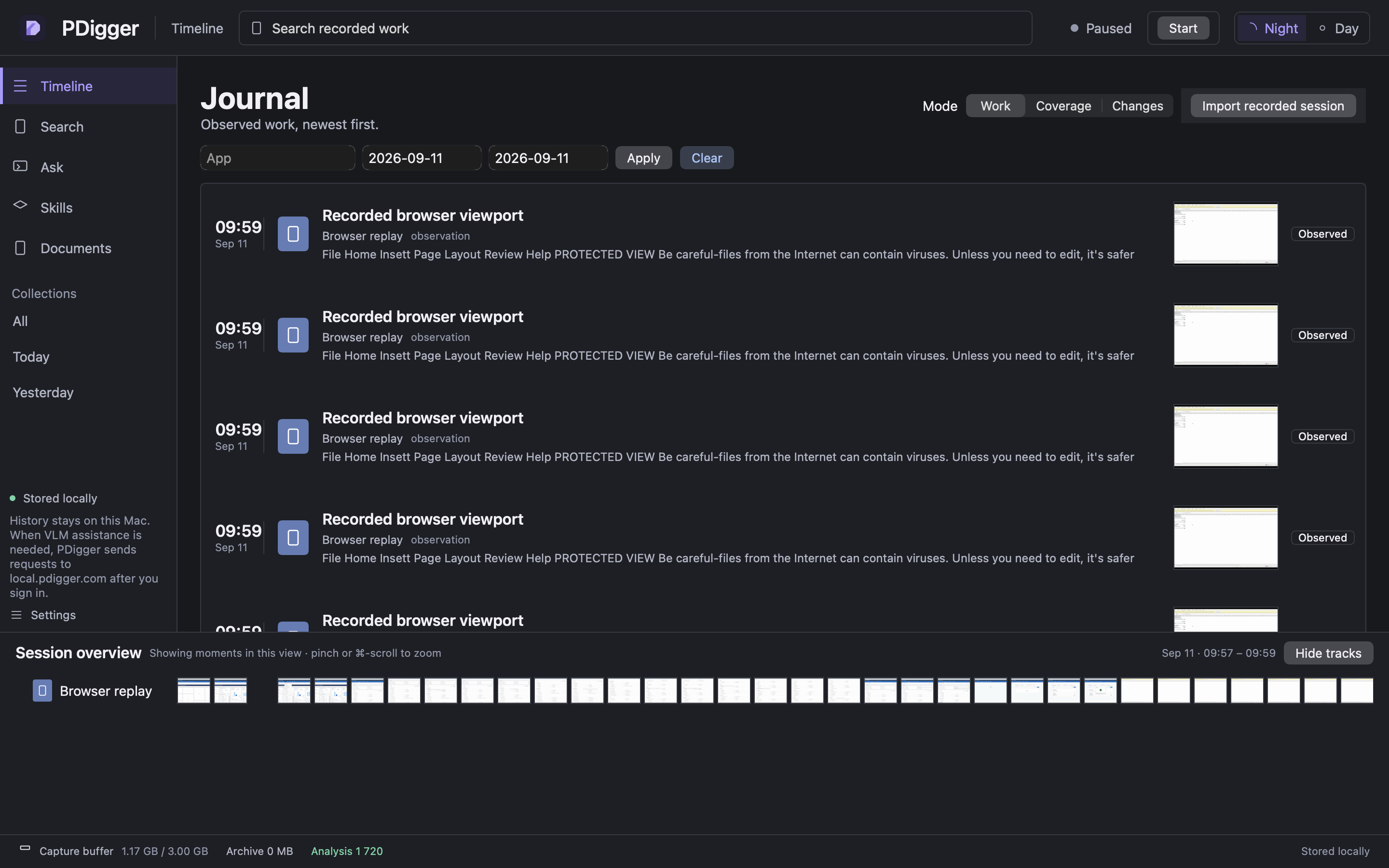
Open Timeline
The journal lists observed work, newest first. When there are more than 100 records, the page says Showing the first 100 records. Use Show more below.
Step 2
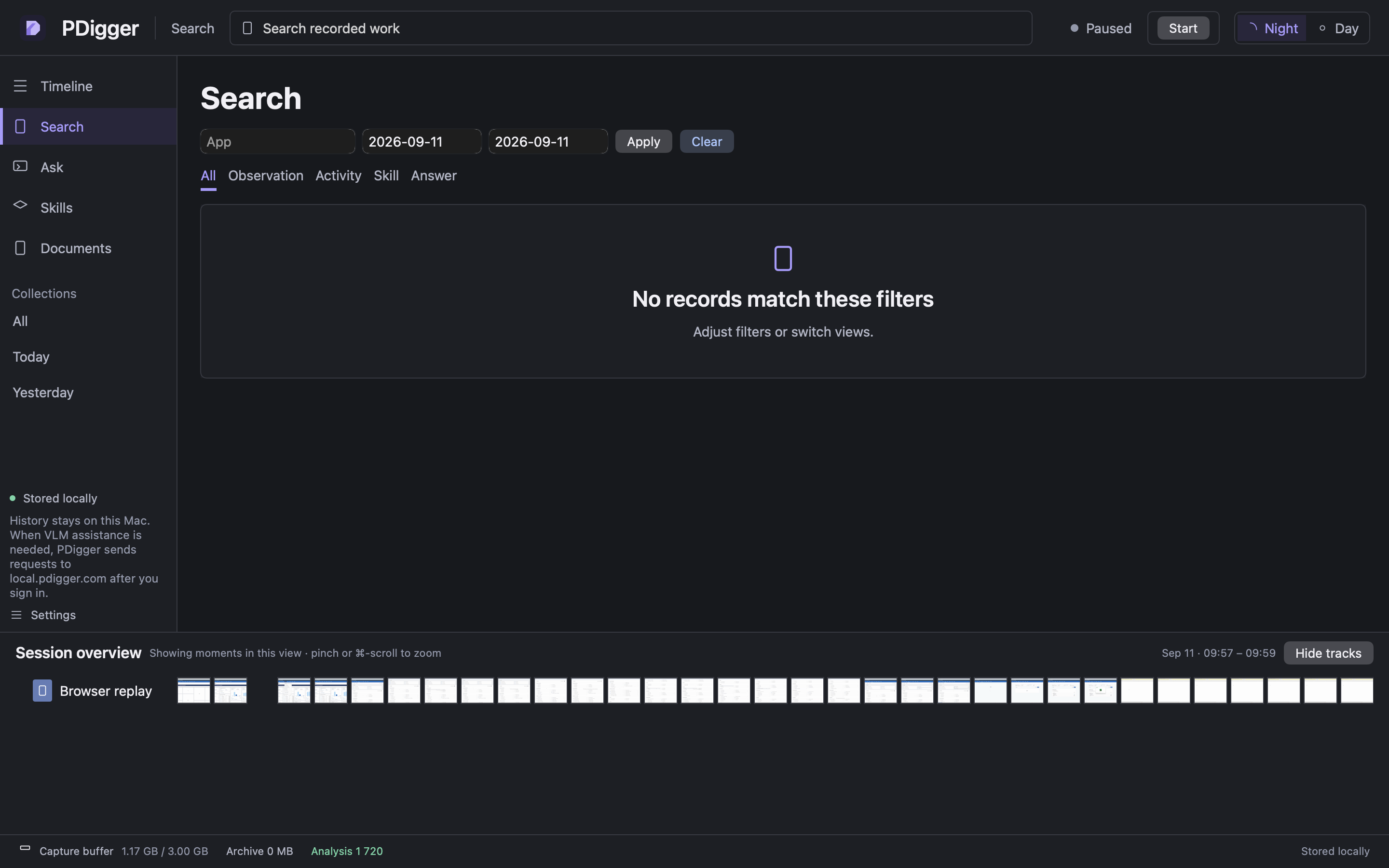
Open Search
Choose Search in the sidebar. The search box at the top of the window is the same field: type there or on the Search page.
Step 3
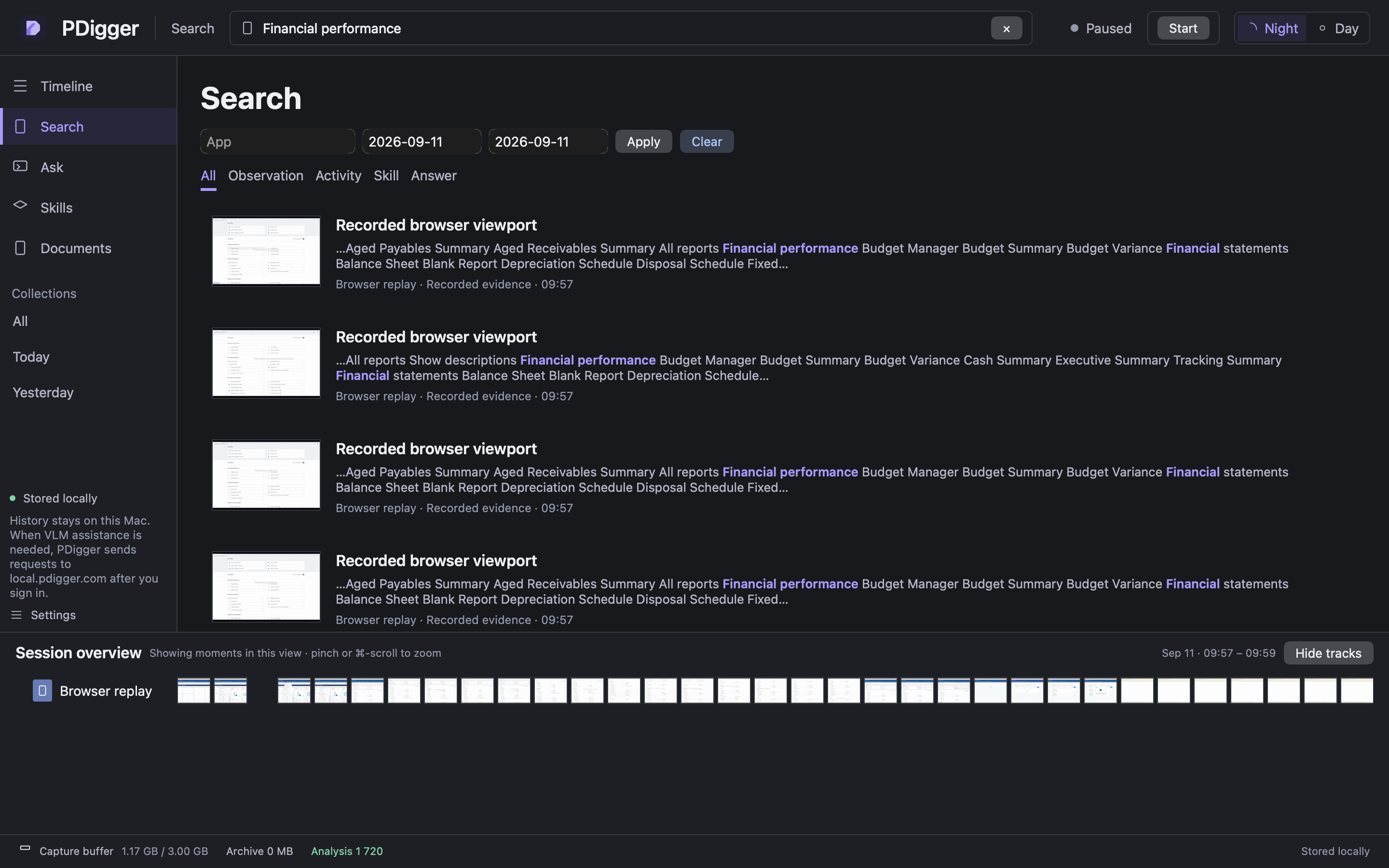
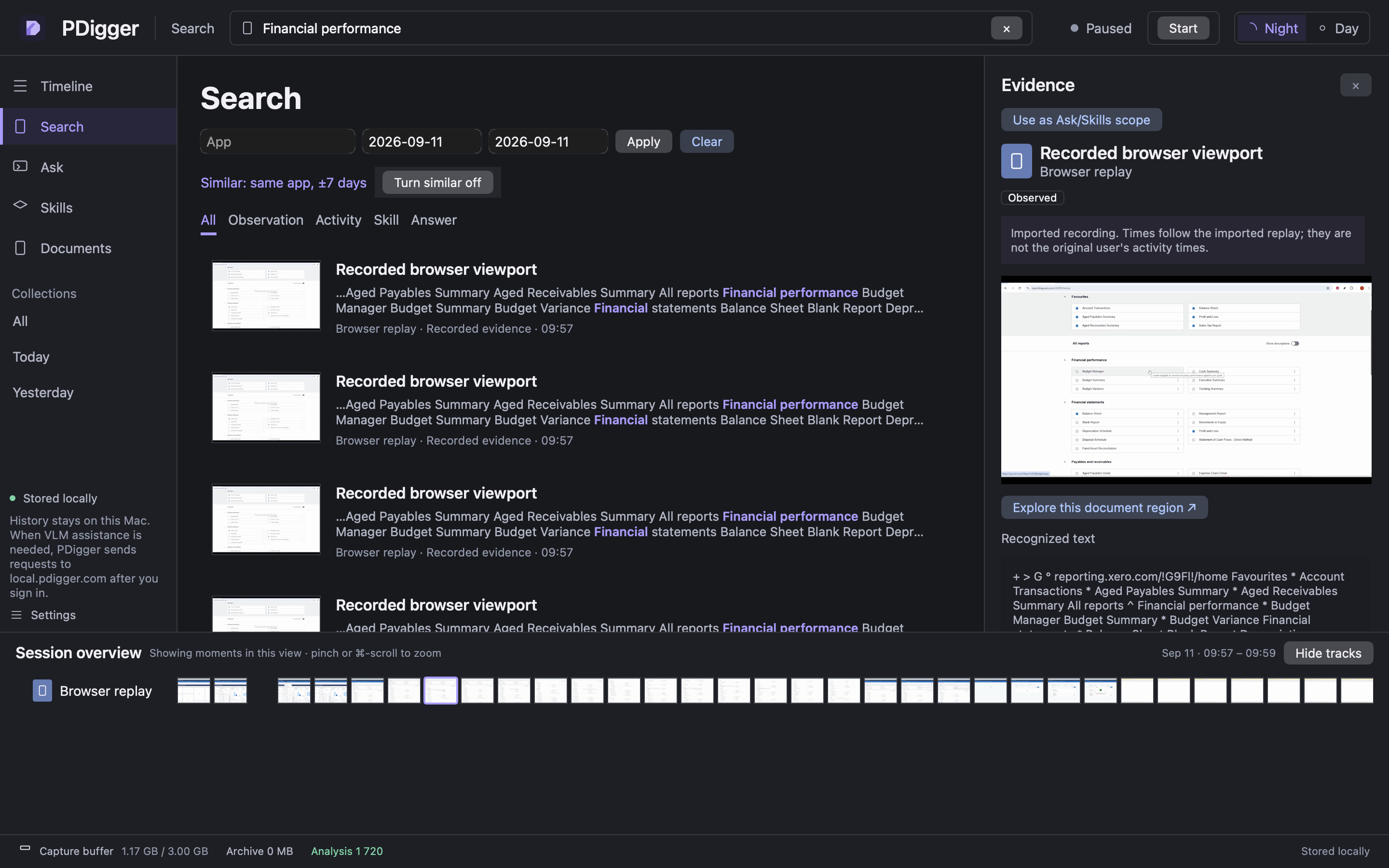
Type a phrase that was on screen
Use words you can see in the recording, for example Financial performance. A caption-only word that never appeared on screen will not help. Press Return or wait for hits after you run the search.
Step 4
Read the hits
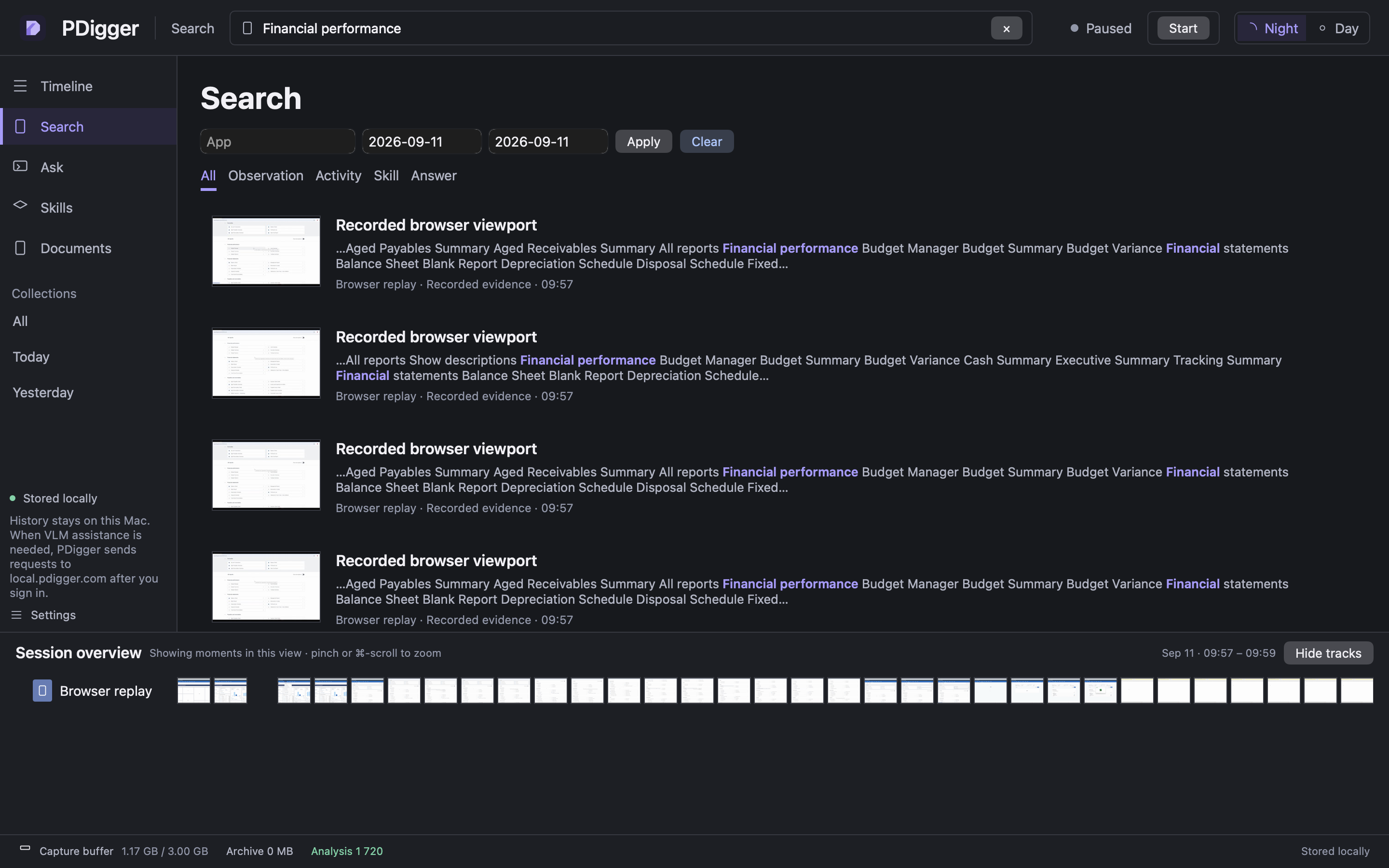
Each hit shows a title, a short excerpt with matching words highlighted, and the app, record type and time. Records with an image also have a thumbnail. The application name on imported browser sessions is Browser replay.
Step 5
Open one hit
Click a hit. The inspector appears only after a selection. It shows the image and the OCR for that record. Close it to return the list to full width.
Step 6
Narrow with dates or an app
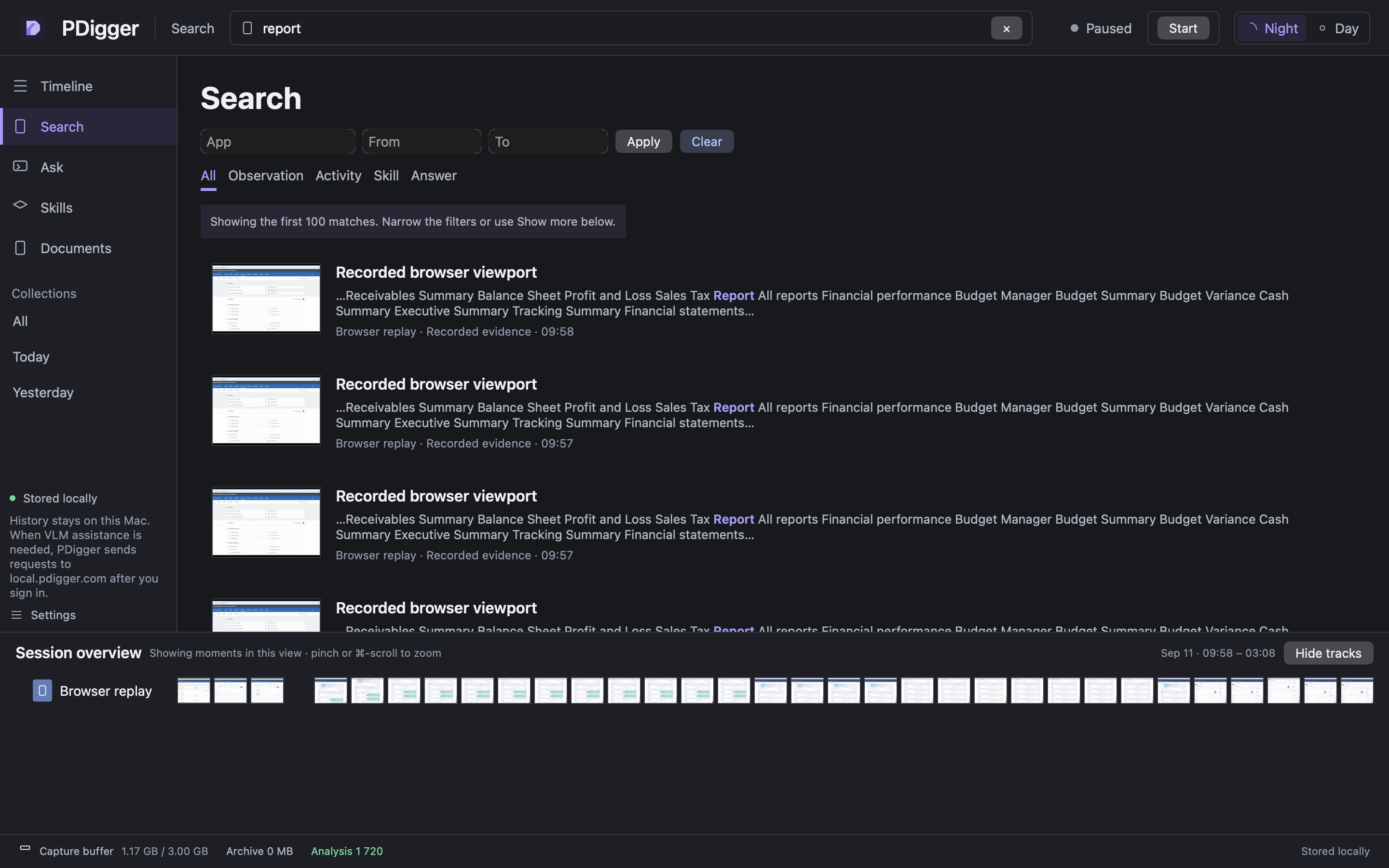
Use From and To when you remember the day. Use the Application filter only if your recording named Excel as the app. Tutorial and browser-replay shots stay Browser replay — do not expect a Microsoft Excel chip on those frames.
Step 7
Show more
If another page of results exists, Search shows Showing the first 100 matches. Narrow the filters or use Show more below. Scroll to the bottom of the results and choose Show more to load the next page. Pages stay newest-first and do not repeat rows.
Step 8
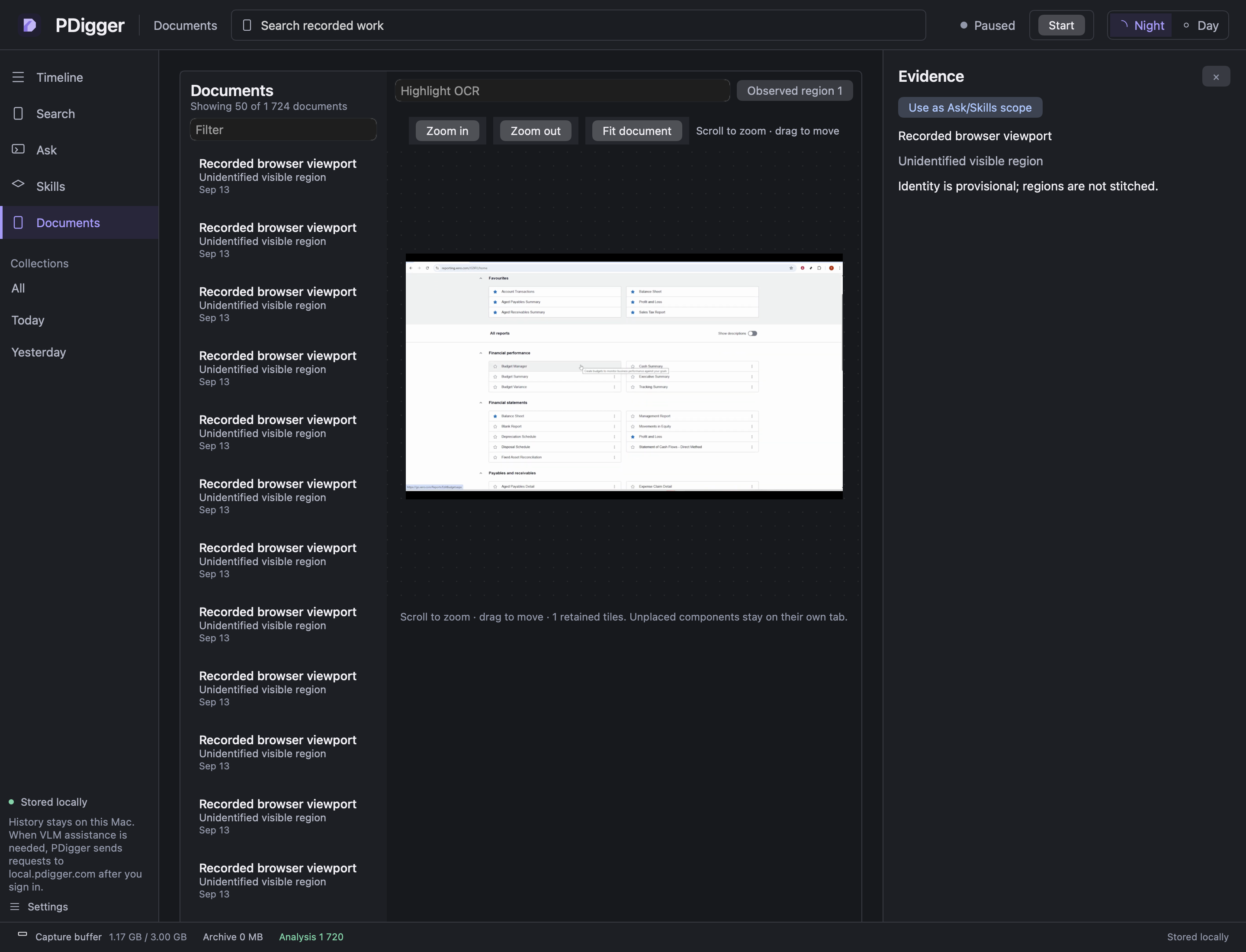
Open the same surface in Documents
Documents lists retained maps. Select a surface to zoom: Scroll to zoom · drag to move. Ambiguous frames are never stitched into one surface. Use Fit document to return to the fitted view. Highlight OCR finds text that was recorded on that map.
Next: Ask what you did in Xero.